CSS Flexbox – Create Modern Website Layouts with Simple Examples
Published: 14 Oct, 2026 | Author: CCI Admin | Category: CSS / Web Development
CSS Flexbox, also known as the Flexible Box Layout, is a powerful CSS layout system used to arrange elements in rows or columns. It helps developers align items, distribute space, and create responsive website layouts with less code.
In this guide from CCI Computer Education, Pudukkottai, you will learn the basics of Flexbox through simple examples and practical website layouts.
1. What Is CSS Flexbox?
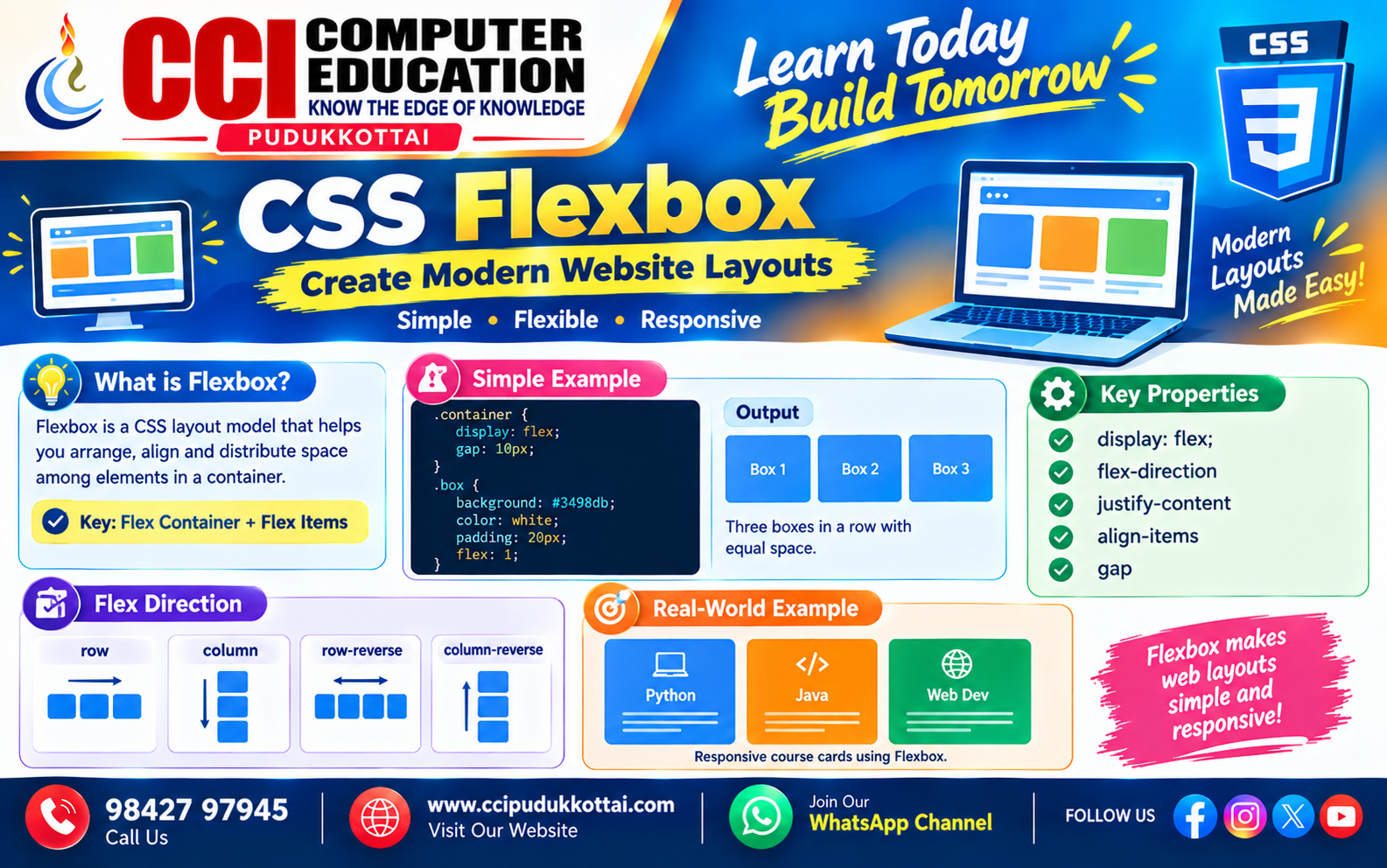
Flexbox is a CSS layout model that makes it easier to arrange and align elements inside a container. It is especially useful for navigation bars, cards, buttons, and responsive sections.
Flexbox works with two main parts:
- Flex Container: The parent element with
display: flex;. - Flex Items: The direct children of the flex container.
2. Creating Your First Flexbox Layout
Let's arrange three boxes horizontally using CSS Flexbox.
<!DOCTYPE html>
<html lang="en">
<head>
    <meta charset="UTF-8">
    <meta name="viewport" content="width=device-width, initial-scale=1.0">
    <title>My First Flexbox</title>
    <style>
        .container {
            display: flex;
            gap: 10px;
        }

        .box {
            background-color: steelblue;
            color: white;
            padding: 25px;
            text-align: center;
            flex: 1;
        }
    </style>
</head>
<body>

    <div class="container">
        <div class="box">Box 1</div>
        <div class="box">Box 2</div>
        <div class="box">Box 3</div>
    </div>

</body>
</html>
Expected Result:
Three blue boxes appear in a horizontal row with equal available space and a gap between them.
The property display: flex; makes the parent a flex container. The gap property creates space between items, and flex: 1; allows the boxes to share the available space.
3. Understanding flex-direction
The flex-direction property determines the main direction in which flex items are arranged.
.container {
    display: flex;
    flex-direction: row;
}
Common values include:
| Value | Purpose |
|---|---|
| row | Arranges items horizontally from left to right in the usual left-to-right layout. |
| column | Arranges items vertically from top to bottom. |
| row-reverse | Reverses the row direction. |
| column-reverse | Reverses the column direction. |
4. Using justify-content to Align Items
The justify-content property distributes items along the main axis of a flex container.
.container {
    display: flex;
    justify-content: space-between;
}
Important values include:
flex-start– Places items at the start of the main axis.center– Groups items at the center.flex-end– Places items at the end of the main axis.space-between– Distributes items with space between them.space-around– Adds space around each item.space-evenly– Distributes equal space between items and at the edges.
5. Using align-items
The align-items property aligns items along the cross axis. In a typical horizontal row, this means vertical alignment.
.container {
    display: flex;
    height: 200px;
    align-items: center;
}
Common values are stretch, flex-start, center, flex-end, and baseline.
For example, align-items: center; vertically centers items when the main direction is a row and the container has extra cross-axis space.
6. Flexbox Gap and Wrapping
The gap property adds spacing between flex items. The flex-wrap property controls whether items remain on one line or move onto additional lines when necessary.
.container {
    display: flex;
    flex-wrap: wrap;
    gap: 15px;
}

.card {
    flex: 1 1 200px;
}
Here, cards can wrap onto new lines. The flex: 1 1 200px; shorthand lets each card grow, shrink, and start with a basis of 200 pixels, helping the layout adapt to available space.
7. Flexbox Properties: Container vs Item
| Flex Container Properties | Flex Item Properties |
|---|---|
| display | flex-grow |
| flex-direction | flex-shrink |
| justify-content | flex-basis |
| align-items | align-self |
| flex-wrap | order |
| gap | flex |
8. Real-World Example: Responsive Course Cards
A training website can use Flexbox to display course cards in a flexible layout. This example demonstrates how cards can share space and wrap when the screen becomes narrower.
<style>
    .courses {
        display: flex;
        flex-wrap: wrap;
        gap: 20px;
    }

    .course {
        flex: 1 1 220px;
        padding: 20px;
        border: 1px solid #ccc;
        border-radius: 8px;
        background-color: #f4f8ff;
    }
</style>

<div class="courses">
    <div class="course">
        <h3>Python</h3>
        <p>Learn programming basics.</p>
    </div>

    <div class="course">
        <h3>Java</h3>
        <p>Learn object-oriented programming.</p>
    </div>

    <div class="course">
        <h3>Web Development</h3>
        <p>Learn HTML, CSS and JavaScript.</p>
    </div>
</div>
Expected Result:
The three course cards appear in a row when enough space is available. On narrower screens, the cards can wrap onto additional rows. The exact layout depends on the available width and other CSS rules.
9. Flexbox vs CSS Grid
| Feature | Flexbox | CSS Grid |
|---|---|---|
| Layout style | Primarily one-dimensional | Two-dimensional |
| Best suited for | Navigation bars, rows, and flexible components | Page layouts, rows and columns together |
| Main focus | Alignment and distribution along an axis | Control over rows and columns |
10. Common Flexbox Mistakes
- Forgetting to add
display: flex;to the parent container. - Applying Flexbox properties to the wrong element.
- Confusing the main axis with the cross axis.
- Expecting items to wrap without setting
flex-wrap: wrap;. - Using fixed widths that cause overflow on small screens.
11. Faculty Tip
At CCI Computer Education, students can learn Flexbox by creating a navigation bar, a row of course cards, and a centered login form. Ask them to change justify-content, align-items, and flex-direction and observe how the layout changes.
12. Practice Task for Students
- Create a navigation bar using Flexbox with a logo and three links.
- Create three cards and align them horizontally.
- Use
justify-content: center;to center items along the main axis. - Add
flex-wrap: wrap;and test the layout at a narrow browser width.
13. Frequently Asked Questions (FAQs)
1. What is CSS Flexbox?
CSS Flexbox is a layout system used to arrange, align, and distribute space among elements inside a container.
2. What does display: flex do?
It makes an element a flex container and its direct children become flex items.
3. What is the difference between justify-content and align-items?
justify-content distributes items along the main axis, while align-items aligns them along the cross axis.
4. Can Flexbox create responsive layouts?
Yes. Flexbox supports flexible sizing and wrapping. Combining it with media queries and suitable widths can help create responsive layouts.
5. Should I learn Flexbox or CSS Grid first?
Flexbox is useful for one-dimensional layouts, while CSS Grid is useful for two-dimensional layouts. Both are valuable tools for modern web development.
Conclusion
CSS Flexbox makes it easier to create clean, flexible, and responsive website layouts. By understanding flex containers, flex items, direction, alignment, spacing, and wrapping, you can build navigation bars, course cards, and many other website components.
Practise these examples and continue improving your web development skills with CCI Computer Education, Pudukkottai.
What to Learn Next
- CSS Grid Layout Explained for Beginners
- Responsive Web Design Basics
- CSS Media Queries with Practical Examples
Related CCI Blogs
- How a Website Works – From Browser to Server Explained
- CSS Selectors Explained for Beginners – How to Select and Style HTML Elements
- HTML Semantic Elements – Build Meaningful and SEO-Friendly Web Pages
Learn Web Development with CCI Computer Education
Want to build modern websites? Join CCI Computer Education, Pudukkottai, and learn web development through practical examples and projects.
Start learning Web Development with CCI. 👆 Click Here
Call: 98427 97945 | Website: www.ccipudukkottai.com
WhatsApp Channel: Follow CCI Computer Education
CCI Computer Education – Learn Today, Build Tomorrow.