CSS Selectors Explained for Beginners – How to Select and Style HTML Elements
Published: 18 Sep, 2026 | Author: CCI Admin | Category: CSS / Web Development
CSS, or Cascading Style Sheets, is used to control the appearance and layout of HTML web pages. One of the first concepts beginners need to understand is the CSS Selector.
A CSS selector tells the browser which HTML elements should receive a particular style. Once you understand selectors, you can easily change colors, fonts, spacing, borders, backgrounds, and layouts.
At CCI Computer Education, Pudukkottai, students learning Web Development can practice CSS selectors with simple HTML and CSS examples.
What is a CSS Selector?
A CSS selector is a pattern used to select HTML elements that you want to style.
For example:
p {
    color: blue;
}
Here, p is the selector. It selects all paragraph elements and changes their text color to blue.
Basic CSS Syntax
selector {
    property: value;
}
For example:
h1 {
    color: orange;
    font-size: 32px;
}
In this example, h1 selects the heading, color is the property, and orange is the value.
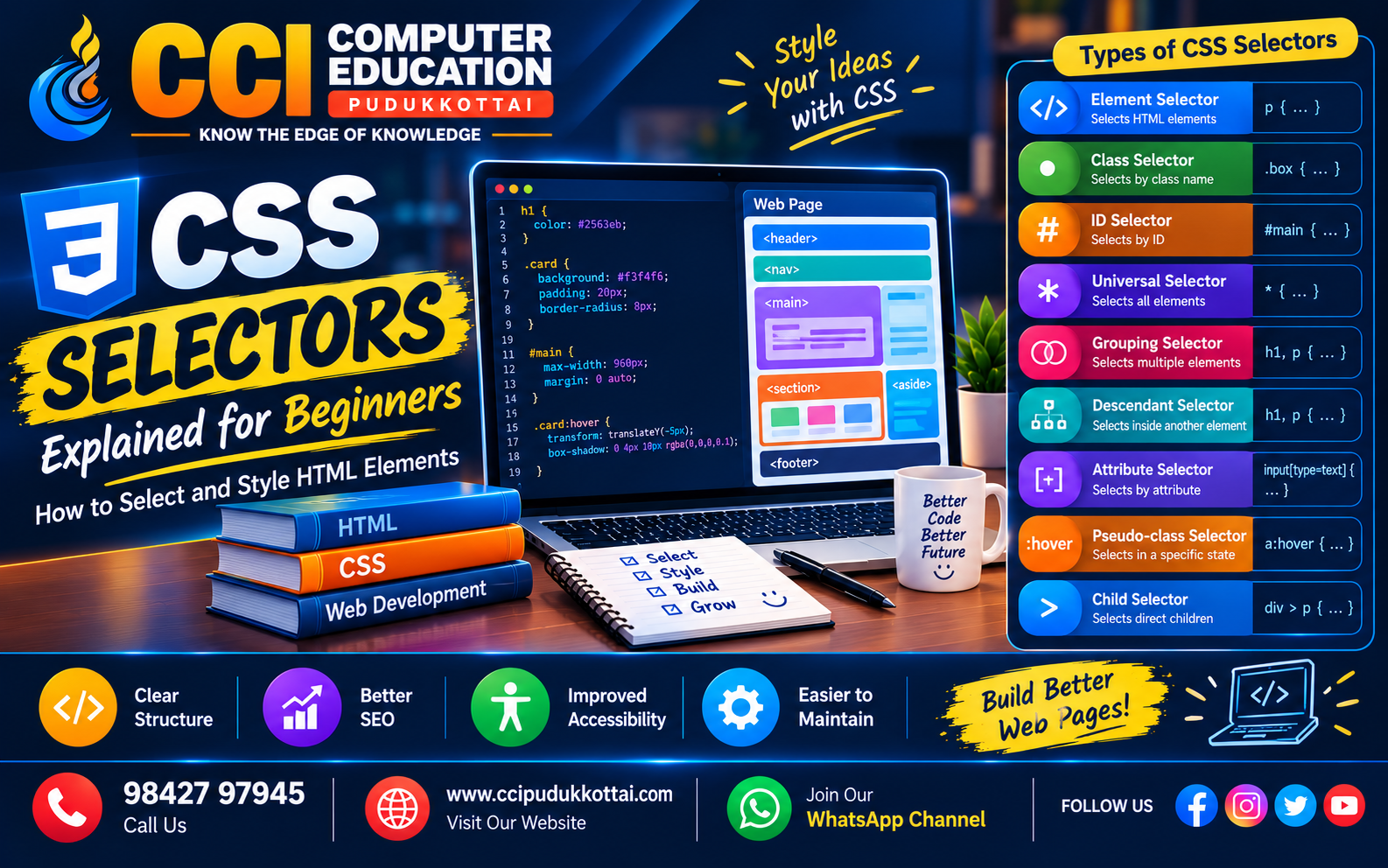
1. Element Selector
The element selector selects all HTML elements with a particular tag name.
p {
    color: blue;
}

h2 {
    color: green;
}
The first rule styles all paragraphs, while the second rule styles all h2 headings.
2. Class Selector
A class selector is used when you want to apply the same style to one or more HTML elements.
A class selector starts with a . symbol.
.highlight {
    color: orange;
    font-weight: bold;
}
HTML:
<p class="highlight">
    Learn CSS at CCI Computer Education.
</p>
Multiple HTML elements can use the same class.
3. ID Selector
An ID selector is used to select an element with a specific ID. An ID selector starts with the # symbol.
#title {
    color: darkblue;
    text-align: center;
}
HTML:
<h1 id="title">
    CSS Selectors
</h1>
IDs are intended to identify a specific element on a page.
4. Universal Selector
The universal selector is represented by an asterisk *. It selects all elements.
* {
    margin: 0;
    padding: 0;
}
This is commonly used to reset default spacing before designing a webpage.
5. Grouping Selector
The grouping selector allows you to apply the same CSS rules to multiple selectors.
h1, h2, p {
    font-family: Arial;
}
The same font will be applied to the h1, h2, and p elements.
6. Descendant Selector
A descendant selector selects elements that are inside another element.
div p {
    color: purple;
}
This selects paragraphs that are inside a div.
Example:
<div>
    <p>This paragraph will be styled.</p>
</div>
7. Attribute Selector
Attribute selectors allow you to select HTML elements based on their attributes.
input[type="text"] {
    border: 2px solid blue;
}
This selector targets input elements whose type is text.
8. Pseudo-Class Selector
Pseudo-classes are used to style an element when it is in a particular state.
One common example is the :hover pseudo-class.
button:hover {
    background-color: orange;
    color: white;
}
When the user moves the mouse over the button, the hover style is applied.
9. Child Selector
The child selector selects elements that are direct children of another element.
div > p {
    color: red;
}
This selects only paragraphs that are direct children of the div.
CSS Selector Comparison
| Selector | Example | Purpose |
|---|---|---|
| Element | p | Selects HTML elements |
| Class | .box | Selects elements using a class |
| ID | #title | Selects an element by ID |
| Universal | * | Selects all elements |
| Attribute | input[type="text"] | Selects by attribute |
| Pseudo-class | button:hover | Selects an element in a state |
Real-World Example
Imagine you are creating a course page for CCI Computer Education, Pudukkottai. You can use CSS selectors to style course cards.
.course {
    border: 1px solid #ddd;
    padding: 20px;
    margin: 10px;
}

.course h2 {
    color: blue;
}

.course p {
    color: #555;
}

.course button:hover {
    background-color: orange;
    color: white;
}
Here, the class selector styles the course container, while descendant selectors style the heading and paragraph inside it.
Common CSS Selector Mistakes
- Forgetting the dot before a class selector.
- Forgetting the hash symbol before an ID selector.
- Using an incorrect class or ID name in HTML.
- Using selectors that are unnecessarily complicated.
- Forgetting that CSS property names and values must be written correctly.
Faculty Tip
CCI Faculty Tip: Ask students to create one HTML page and practice selectors one by one. Start with the element selector, then move to class and ID selectors. Finally, give students a small webpage and ask them to style different sections using different selectors.
Practice Task
Create a simple course webpage containing:
- One main heading
- Three course cards
- A paragraph for each course
- A button for each course
Then practice these selectors:
h1
.course
#main
.course p
button:hover
Frequently Asked Questions
1. What is a CSS selector?
A CSS selector identifies the HTML elements that should receive a particular CSS style.
2. What is a class selector?
A class selector selects HTML elements that contain a particular class name. It starts with a dot.
3. What is an ID selector?
An ID selector selects an HTML element using its ID and starts with the # symbol.
4. Can multiple elements use the same class?
Yes. A class can be applied to multiple HTML elements.
5. What does :hover do?
The :hover pseudo-class applies styles when the pointer is positioned over an element.
Learn CSS at CCI Computer Education
At CCI Computer Education, Pudukkottai, students can learn HTML and CSS through practical examples and website-building exercises.
After learning CSS selectors, students can continue with CSS box model, colors, fonts, positioning, Flexbox, Grid, and responsive web design.
Conclusion
CSS selectors are the foundation of styling HTML webpages. By learning element, class, ID, universal, grouping, descendant, attribute, child, and pseudo-class selectors, beginners can create better-designed websites.
The best way to understand selectors is to practice them with real HTML pages and gradually combine different selectors to create complete webpage designs.
Next Learning Path
After learning CSS selectors, the next important topic is CSS Box Model. Understanding margin, border, padding, and content will help you control the size and spacing of webpage elements.
Related CCI Blogs
Contact CCI Computer Education – Pudukkottai
Want to improve your web development skills? Join CCI Computer Education, Pudukkottai and learn through practical, step-by-step training.
Call: 98427 97945 | Website: ccipudukkottai.com
WhatsApp Channel: Join Now
Share: Facebook | WhatsApp | Twitter