JavaScript DOM Manipulation for Beginners – Change Webpages with Practical Examples
Published: 10 Oct, 2026 | Author: CCI Admin | Category: JavaScript / Web Development
JavaScript makes webpages interactive and dynamic. Using DOM Manipulation, developers can change HTML content, update CSS styles, respond to button clicks, and create new elements without reloading the entire webpage.
In this blog, we will learn JavaScript DOM manipulation step by step with simple examples and practical applications.
What Is the DOM?
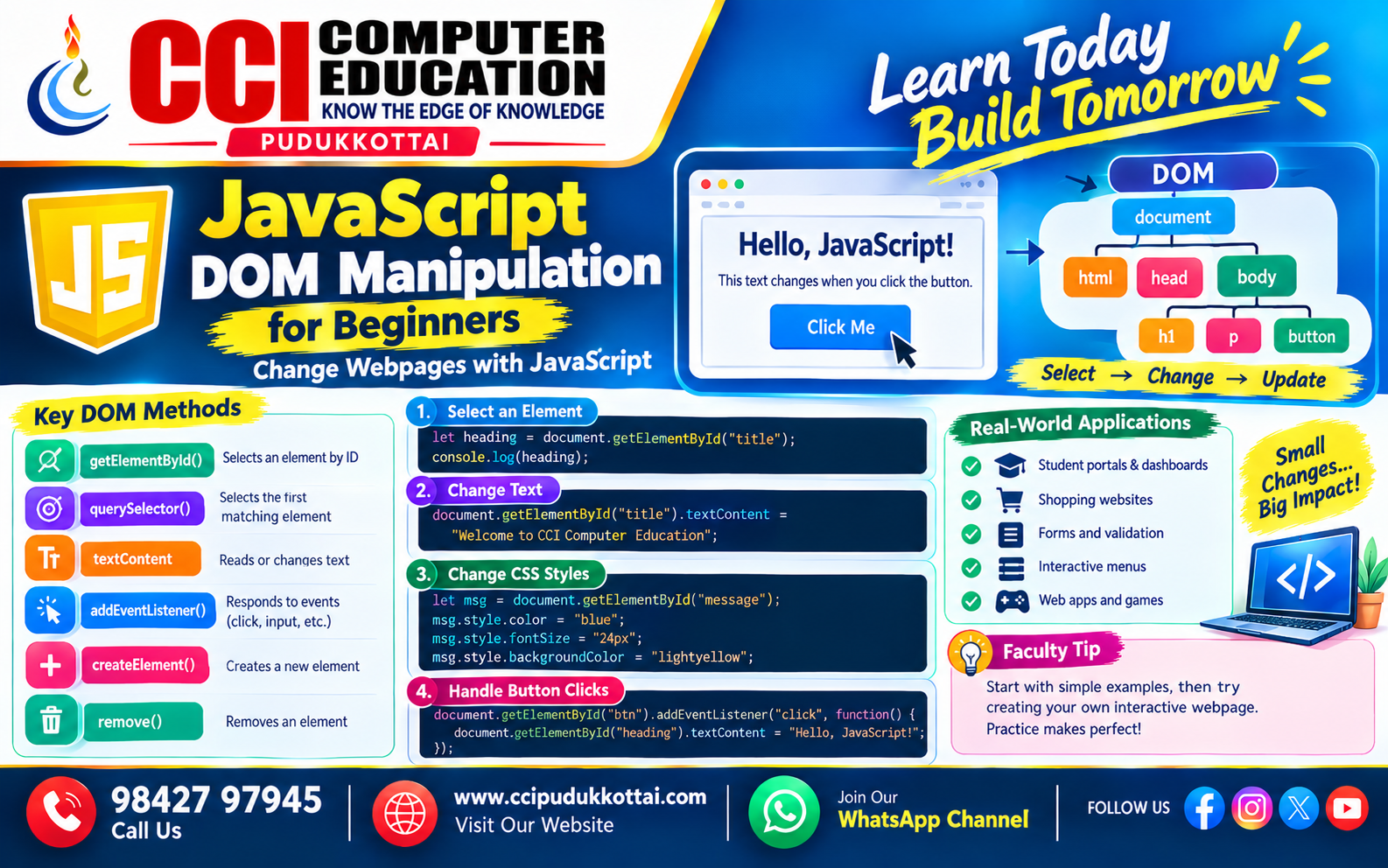
DOM stands for Document Object Model. It represents an HTML document as a tree of objects that JavaScript can access and modify.
For example, a webpage may contain headings, paragraphs, images, and buttons. JavaScript can select these elements and change their content, appearance, or behavior.
HTML Document
     |
     └── html
          |
          ├── head
          |
          └── body
               |
               ├── h1
               ├── p
               └── button
Why Is DOM Manipulation Important?
- Change webpage content dynamically.
- Respond to button clicks and user actions.
- Modify CSS styles using JavaScript.
- Create and remove HTML elements.
- Build interactive forms, menus, and dashboards.
1. Select an HTML Element Using getElementById()
The getElementById() method selects an HTML element using its unique ID.
Example
<h2 id="title">Welcome to JavaScript</h2>

<script>
    let heading = document.getElementById("title");

    console.log(heading);
</script>
Here, JavaScript selects the heading whose ID is title.
2. Change Text Using textContent
The textContent property allows JavaScript to read or change the text inside an HTML element.
<h2 id="title">Original Heading</h2>

<script>
    document.getElementById("title").textContent =
        "Welcome to CCI Computer Education";
</script>
Output
Welcome to CCI Computer Education
The original heading is replaced with the new text.
3. Change CSS Styles Using JavaScript
JavaScript can change an element's appearance using its style property.
<p id="message">Learn JavaScript</p>

<script>
    let msg = document.getElementById("message");

    msg.style.color = "blue";
    msg.style.fontSize = "24px";
    msg.style.backgroundColor = "lightyellow";
</script>
This example changes the paragraph's text color, font size, and background color.
4. Select Elements Using querySelector()
The querySelector() method selects the first element matching a CSS selector.
<p class="info">Learning DOM Manipulation</p>

<script>
    let paragraph = document.querySelector(".info");

    paragraph.textContent = "DOM makes webpages interactive!";
</script>
Remember these selector examples:
| Selector | Purpose | Example |
|---|---|---|
| #title | Select by ID | document.querySelector("#title") |
| .info | Select by class | document.querySelector(".info") |
| p | Select a paragraph | document.querySelector("p") |
5. Handle Button Clicks Using addEventListener()
The addEventListener() method allows JavaScript to respond to events such as button clicks.
<h2 id="heading">Hello Student!</h2>

<button id="changeBtn">Click Me</button>

<script>
    document.getElementById("changeBtn")
        .addEventListener("click", function() {

            document.getElementById("heading").textContent =
                "Welcome to CCI Computer Education!";
        });
</script>
When the user clicks the button, the heading changes automatically.
6. Create a New HTML Element
JavaScript can create new HTML elements using document.createElement().
let newPara = document.createElement("p");

newPara.textContent =
    "This paragraph was created using JavaScript.";

document.body.appendChild(newPara);
The code creates a paragraph and adds it to the end of the webpage body.
7. Remove an HTML Element
The remove() method removes an element from the webpage.
<p id="removeMe">This paragraph will be removed.</p>

<button id="removeBtn">Remove Paragraph</button>

<script>
    document.getElementById("removeBtn")
        .addEventListener("click", function() {

            document.getElementById("removeMe").remove();
        });
</script>
When the button is clicked, the paragraph disappears from the webpage.
8. Complete Practical Example – Interactive Webpage
Let's combine HTML, CSS, and JavaScript to create a small interactive webpage.
<!DOCTYPE html>
<html lang="en">
<head>
    <meta charset="UTF-8">
    <meta name="viewport" content="width=device-width, initial-scale=1.0">
    <title>DOM Manipulation Example</title>

    <style>
        body {
            font-family: Arial, sans-serif;
            text-align: center;
            padding: 30px;
        }

        button {
            padding: 10px 18px;
            cursor: pointer;
        }
    </style>
</head>

<body>

    <h1 id="heading">Welcome!</h1>

    <p id="description">
        Click the button to change this text.
    </p>

    <button id="changeBtn">Change Text</button>

    <script>
        document.getElementById("changeBtn")
            .addEventListener("click", function() {

                document.getElementById("heading").textContent =
                    "Hello, JavaScript!";

                document.getElementById("description").textContent =
                    "You have successfully used DOM manipulation.";
            });
    </script>

</body>
</html>
How It Works
- HTML creates the heading, paragraph, and button.
- JavaScript selects the button using its ID.
- The event listener waits for a click.
- The heading and paragraph change when clicked.
Real-World Example – Student Management System
Imagine a student management webpage where a user clicks a button to display a student's details. DOM manipulation can update the page without rebuilding the entire HTML document.
<h3 id="studentName">Student Details</h3>

<button id="showStudent">Show Student</button>

<script>
    document.getElementById("showStudent")
        .addEventListener("click", function() {

            document.getElementById("studentName").textContent =
                "Name: Arun | Course: JavaScript";
        });
</script>
This approach can be used in student portals, dashboards, and other interactive web applications.
Important DOM Methods and Properties
| Method or Property | Purpose |
|---|---|
| getElementById() | Selects an element by ID |
| querySelector() | Selects the first matching element |
| textContent | Reads or changes text |
| addEventListener() | Responds to events |
| createElement() | Creates a new element |
| appendChild() | Adds a node to another node |
| remove() | Removes an element |
Common DOM Manipulation Mistakes
- Using an incorrect element ID or class name.
- Running JavaScript before the required HTML element exists.
- Confusing textContent with innerHTML.
- Forgetting to attach an event listener to the correct element.
- Using innerHTML with untrusted user input, which can introduce security risks.
Faculty Tip
Beginners should practise selecting an element, changing its text, updating its styles, and responding to a button click before moving to advanced JavaScript topics.
Remember this simple workflow:
Select Element
      |
      v
Change Content or Style
      |
      v
Handle User Events
      |
      v
Update the Webpage
Practice Task for Students
Create a simple Student Greeting Application using HTML and JavaScript.
- Add a text input to enter a student's name.
- Add a button named "Show Greeting".
- Display a welcome message when the button is clicked.
- Change the message color using JavaScript.
- Display a friendly message if the input is empty.
Frequently Asked Questions
1. What is DOM manipulation in JavaScript?
DOM manipulation is the process of accessing and changing webpage elements using JavaScript.
2. What does getElementById() do?
It selects an HTML element using its unique ID.
3. What is the difference between textContent and innerHTML?
textContent reads or sets text. innerHTML reads or sets HTML markup inside an element. Avoid inserting untrusted input through innerHTML.
4. What is addEventListener() used for?
It registers a function that runs when an event, such as a button click, occurs.
5. Can JavaScript change CSS styles?
Yes. JavaScript can modify element styles or add and remove CSS classes.
Conclusion
JavaScript DOM manipulation is an essential skill for frontend development. It allows developers to select elements, change content, modify styles, respond to events, and create interactive webpages.
Beginners should practise these concepts using small HTML and JavaScript programs before building complete web applications.
What to Learn Next?
- JavaScript Events and Event Handling
- JavaScript Form Validation
- JavaScript Arrays and Objects
- Build a To-Do List Application
- Frontend Mini Projects for Beginners
Related CCI Blogs
- How a Website Works – From Browser to Server Explained
- CSS Selectors Explained for Beginners – How to Select and Style HTML Elements
- HTML Semantic Elements – Build Meaningful and SEO-Friendly Web Pages
Learn More About Web Development
Want to learn HTML, CSS, JavaScript, and frontend development through practical exercises? CCI Computer Education helps students build their programming skills through hands-on learning and projects.
Start learning Web Development with CCI. 👆 Click Here
Contact CCI Computer Education – Pudukkottai
Want to learn JavaScript and Web Development?
Call: 98427 97945 | Website: ccipudukkottai.com
WhatsApp Channel: Join CCI WhatsApp Channel
CCI Computer Education – Learn Today, Build Tomorrow.